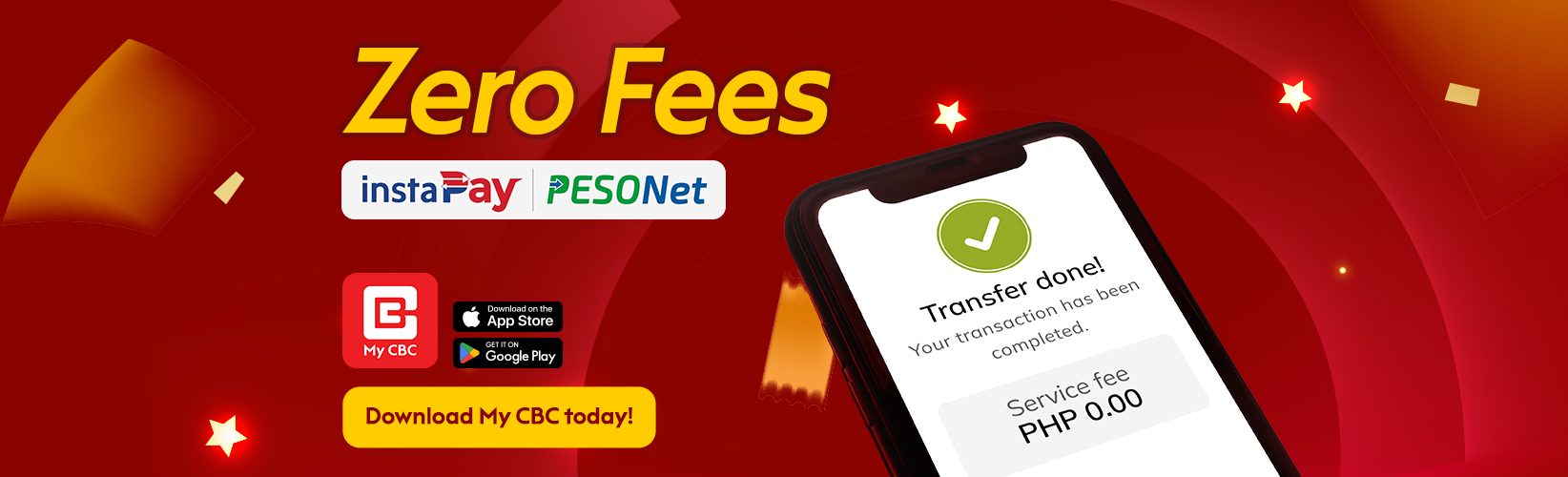
Is there a service fee for transferring funds using My CBC?
None. All fund transfers via My CBC are FREE of charge:
- Between your China Bank and other China Bank Savings accounts – free of charge
- To other banks via InstaPay – free of charge
- To other banks via PESONet – free of charge
- To e-wallets via InstaPay – free of charge
- To e-wallets via PESONet – free of charge
Is there a limit to the amount I can transfer through My CBC?
- Between own Chinabank accounts:
- No Daily Limit: Users can make multiple transfers per day.
- To other Chinabank and China Bank Savings accounts:
- You may transfer up to Php 150,000 per transaction and up to a maximum of Php 250,000 accumulated transactions per day, including transfers to other banks or eWallets via InstaPay.
- Via InstaPay:
- You may transfer up to Php 50,000 per transaction and up to a maximum of Php 250,000 accumulated transactions per day, including transfers to other banks or eWallets via InstaPay.
- Via PESONet:
- You can transfer up to Php 499,999 per transaction, with a daily limit of Php 499,999 for PESONet transfers.
How can I verify if my transfer was successful?
After a successful transaction, you will:
- See a confirmation screen displaying your reference number
- See the completed transaction in your transaction history
- Get a confirmation email and SMS sent to your registered email and mobile number
How to Transfer through My CBC App?
To Transfer:
Between own Chinabank accounts
- Open your My CBC App, then tap "Transfers" then "Between own accounts"
- Select your source account
- Select your destination account
- Type in the amount you want to transfer
- Confirm your transaction
To other Chinabank and China Bank Savings accounts
- Open your My CBC App, then tap "Transfers" then Select "Other Chinabank accounts" or "Other China Bank Savings accounts" respectively
- Select your source account
- Select your destination account
- Type in the amount you want to transfer
- Confirm and authenticate your transaction
Via InstaPay
- Open your My CBC App, then tap "Transfers" then Select "Other bank accounts or eWallets - Instapay"
- Select your source account
- Select the destination bank or eWallet
- Type in the account details and the amount you want to transfer
- Confirm and authenticate your transaction
Via PESONet
- Open your My CBC App, then tap "Transfers" then Select "Other bank accounts or eWallets - PesoNet"
- Select your source account
- Select the destination bank or eWallet
- Type in the account details and the amount you want to transfer
- Confirm and authenticate your transaction
How can I verify if my transfer was successful?
- You will see a confirmation screen displaying your reference number.
- The completed transaction will appear in your transaction history.
- A confirmation email and SMS will be sent to your registered email address and mobile number.
How do I schedule a fund transaction?
You can schedule a new transfer transaction when you log in to your My CBC App.
- Log in to your My CBC App, tap "Transfer" on the bottom navigation bar
- Select the type of Transfer
- Select your source account to debit from
- Select from your enrolled account or enter recipient’s account details
- Input the amount
- Under When, tap or click if:
- "Now" for today's transaction
- "Later" to schedule your transfer on a later date
- "Recurring" to schedule your recurring fund transfer (You can select, Daily, Weekly, Monthly, Quarterly, Semi-annually and Yearly). Then enter number of occurrences*
- Tap "Continue"
- Review the details of your scheduled transactions
- Authenticate your transaction
- You will see a confirmation screen containing your scheduled/recurring fund transfer and you will also receive an SMS and Email confirmation
*For recurring, here are the maximum number of occurrences you can enter:
- Daily (365)
- Weekly (52)
- Monthly (60)
- Quarterly (60)
- Semi-annually (20)
- Yearly (10)
What transfer transactions can be scheduled?
You can only create a scheduled or recurring transfer on the following:
- Between own accounts
- Other Chinabank accounts
- Other Chinabank Savings accounts
- Other bank accounts or eWallet - Instapay
How can I manage my scheduled and recurring transfer transactions?
To see your list of scheduled and recurring transfer transactions
- Log in to your My CBC App, tap More > My CBC Services > Products and Services > Scheduled Transactions.
- On the Scheduled tab, you can view all the scheduled and recurring transfer transactions you have created.
- Tap the scheduled transaction to see its details and the upcoming transaction schedule.
- You have the option to cancel all your scheduled and recurring transfer transactions or a specific individual recurring transaction by tapping the Cancel button.
- On the History tab, you can see all your processed transactions.
To search for your specific transaction, tap the search icon, then choose from Category, Status and select your criteria.
